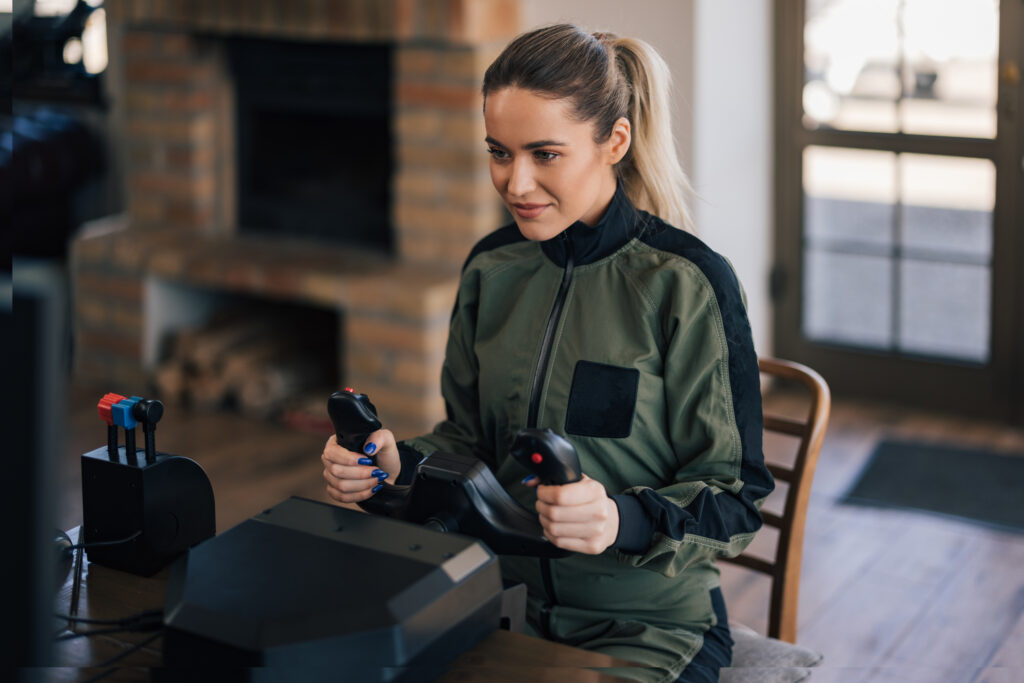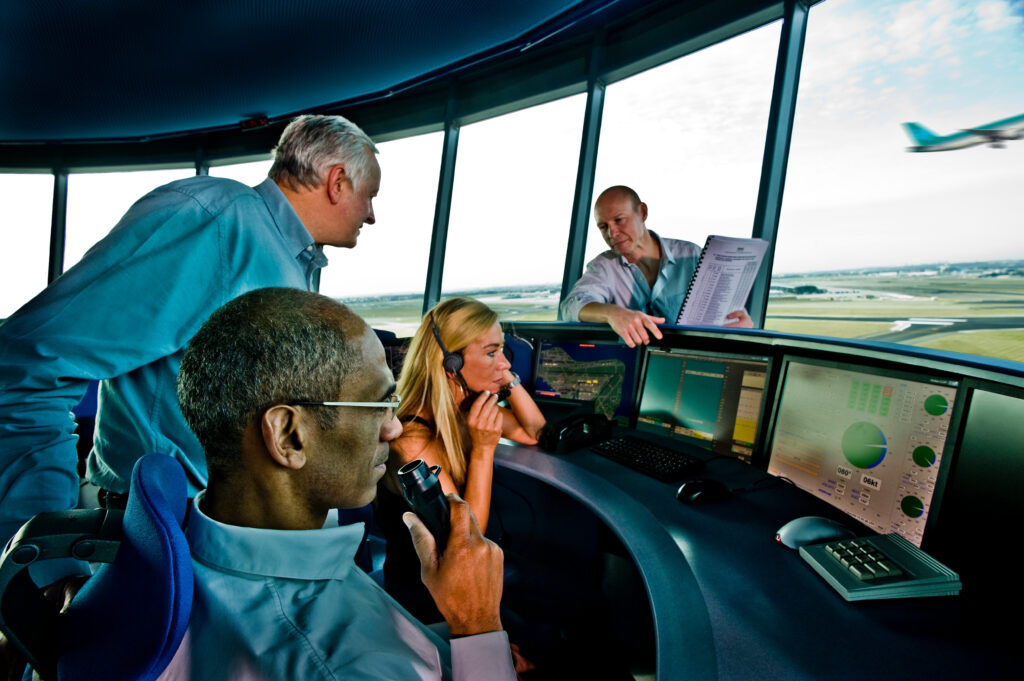
Believe it or not, you might already own half the equipment needed to build a flight simulator. By making smart choices with the other half, you can create an immersive cockpit experience without spending a fortune.
Why bother? Because flight schools and pilot training programs notice something interesting: pilot students who practice at home arrive for their first lesson already comfortable in the cockpit. They know the instruments, understand basic flows, and scan the panel with familiarity. That head start can come from even a modest home setup.
Here’s how to build your own flight simulator without emptying your wallet.
The Three Fundamental Elements of Every Flight Simulator
Every flight simulator setup shares three core ingredients: a computer to run it, software to fly it, and controls to command it. Here’s what you need to know about each.
1. The System: Your Computer Hardware
Your computer is the engine. If you’re serious about aviation and want to supplement your pilot training, here’s the good news: you might already own a workable system. Mac, Linux, and Xbox all run simulators, but Windows PCs deliver the best performance and widest hardware compatibility.
Modern sims like Microsoft Flight Simulator demand serious processing power, graphics, and memory for smooth performance. But modest hardware still runs them—just at lower settings.
Begin with existing gear. Skill-building doesn’t require max graphics, and upgrades can wait until your passion and wallet demand them.
2. The Simulator: Choosing Your Software
Different simulators serve different pilots. Your choice shapes everything, from the views outside your window to the physics in your controls.
Selecting the right flight simulator depends entirely on your pilot training goals and whether you’re pursuing aviation as a hobby or a career path.
According to Navigraph’s 2023 survey, the community has clear favorites:
- Microsoft Flight Simulator (MSFS): The dominant choice (71% market share). Stunning visuals, real-time weather, and built-in flight training make it perfect for beginners. PC and Xbox.
- X-Plane: The purist’s option (13% share). Renowned for accurate flight physics. Favored by professionals and serious hobbyists. PC, Mac, Linux.
- Prepar3D: Professional-grade training platform. Highly customizable scenarios for structured learning.
- DCS World: The gold standard for military combat simulation. Ultra-realistic aircraft and passionate community. Windows only.
Not sure which world to enter? We’ve mapped out the best flight simulator games for every type of pilot here.
3. The Peripherals: Your Flight Controls
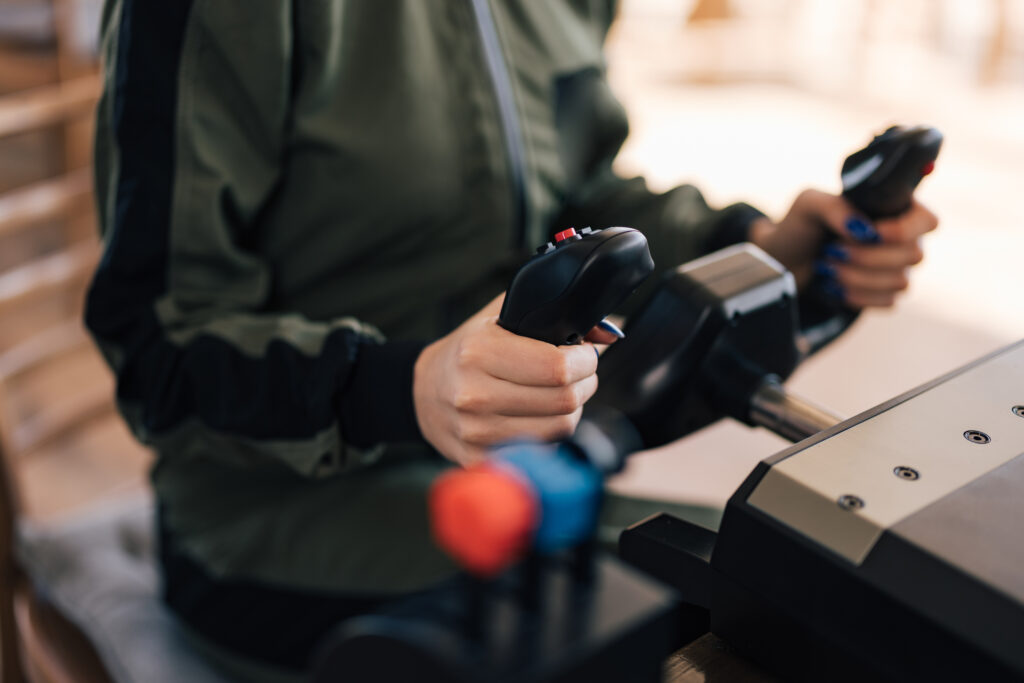
A computer needs a monitor, keyboard and mouse. A flight simulator needs something more. This is where the magic and the budget planning begins.
Joystick or Yoke?
Joysticks are affordable and versatile. Great for everything from fighters to bush planes. Yokes cost more but feel right for Cessna-style flying. Many enthusiasts eventually own both.
Best Budget Joystick: Logitech Extreme 3D Pro ($34.99)
The simulator starter pack. Smooth axes, twist rudder, built-in throttle.
Trade-off: Not built to last forever. But at $34.99, it launches your hobby.
Best Budget Yoke: Logitech G Pro Flight Yoke ($170)
Includes three-axis throttle. Only entry-level yoke available.
Trade-off: 45-degree throw limits precision. Plastic construction. Still a valid starting point.
Rudder Pedals
Skipping rudder pedals is the most common budget mistake. You need them for crosswind landings, ground steering, and any maneuver requiring coordination. A twisting joystick won’t cut it. Yes, they cost more and take up floor space. But if you’re serious about realistic flight simulation, pedals are non-negotiable.
Best Budget Pedals: Logitech G Pro Pedals
All the core functions of expensive pedals, just plastic instead of metal, and lower-quality sensors. Less precise, less durable, but perfectly functional for casual simmers on a budget.
Throttles and Thrust Levers
Built-in throttles are convenient but imprecise. For separate engine control, mixture adjustments, or realistic jet operations, a dedicated quadrant transforms your setup.
Best Budget Throttle: Logitech G Pro Throttle Quadrant ($69.99)
Three independent levers. Swap knobs to match your aircraft: props or jets. Surprisingly smooth for the price.
Trade-off: It’s plastic. Sensors are exposed. But at $69.99, it’s the only game in town and it plays well.

How to Use Your Sim for Real Success
A great setup means nothing without great practice. Here’s how to train like a real pilot.
- Learn the Software: YouTube tutorials walk you through setup, graphics optimization, and essential shortcuts. Keep a printed list nearby until you don’t need it anymore.
- Train for Success: MSFS’s built-in flight school turns sim time into skill. Use it to build habits that last beyond the screen.
- Master the basics:
- Takeoffs & Landings: Fly smooth departures and arrivals on varied surfaces
- Straight & Level: Maintain altitude and heading with minimal corrections
- Turns & Climbs: Coordinate bank angles while climbing or descending
- Level up:
- Navigation: Program G1000 waypoints for cross-country flights
- Emergencies: Practice engine failures and weather challenges
- Multiplayer: Join online networks with live ATC and other pilots
- Situational Awareness: What separates beginners from confident pilots. For a deeper dive into building this habit, head over to our full guide.
Conclusion
You don’t need a fortune to build a functional flight simulator. You just need to start. Grab what you have, add what matters, and practice with purpose.
Now pick an aircraft, pick a runway, and get flying.